17.02.2026
If your eSIM shows signal but no internet, the problem is almost always caused by data roaming settings, APN configuration, or incorrect SIM selection. The good news is that this is usually a quick fix and not a faulty eSIM. Here’s exactly how to solve it step by step.

Don’t worry — this is a very common scenario and usually doesn’t indicate a faulty eSIM. In most cases, it simply requires a small adjustment in your phone’s settings. Most issues can be resolved in just a few taps. This is completely normal and can occur with any mobile operator or travel eSIM worldwide.If you still don’t have an eSIM for your trip, you can explore all available HandySIM plans for over 190 countries.HandySIM offers eSIM plans with instant activation, reliable coverage, and support for all modern smartphones.
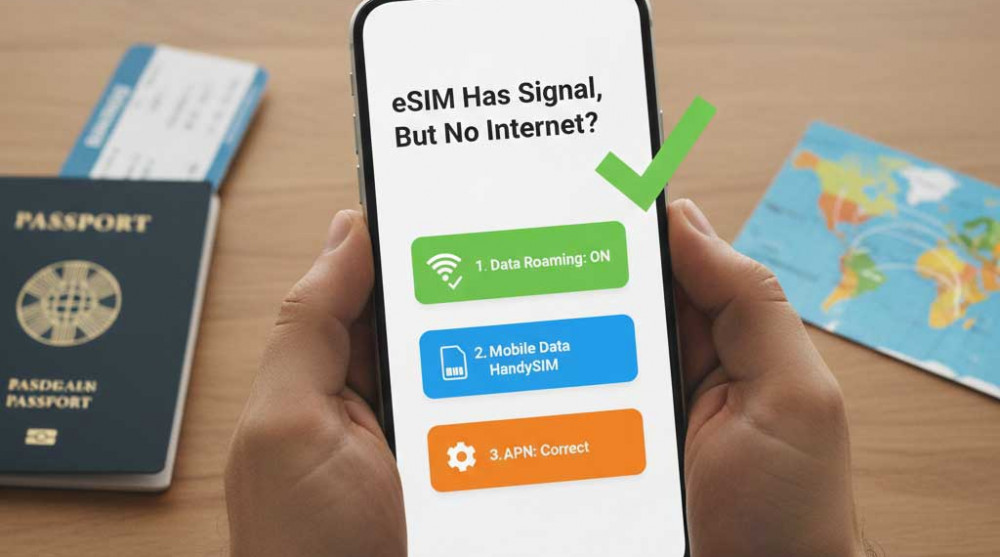
If you have a signal but no internet, check these three settings first:
In 99% of cases, the problem is resolved immediately after these checks.
Statistically, this is the most common reason for a lack of internet connection when installing a new travel eSIM. Many users instinctively keep roaming turned off to avoid huge bills from their primary home provider.
It is important to know that travel eSIMs use roaming infrastructure, even when you are in the destination country. This is because HandySIM partners with the best local networks to provide you with maximum coverage, but technically the device recognizes this connection as roaming. Without data roaming enabled, your phone may block mobile data access to protect you from unexpected charges. For your package to work, however, this feature must be active.
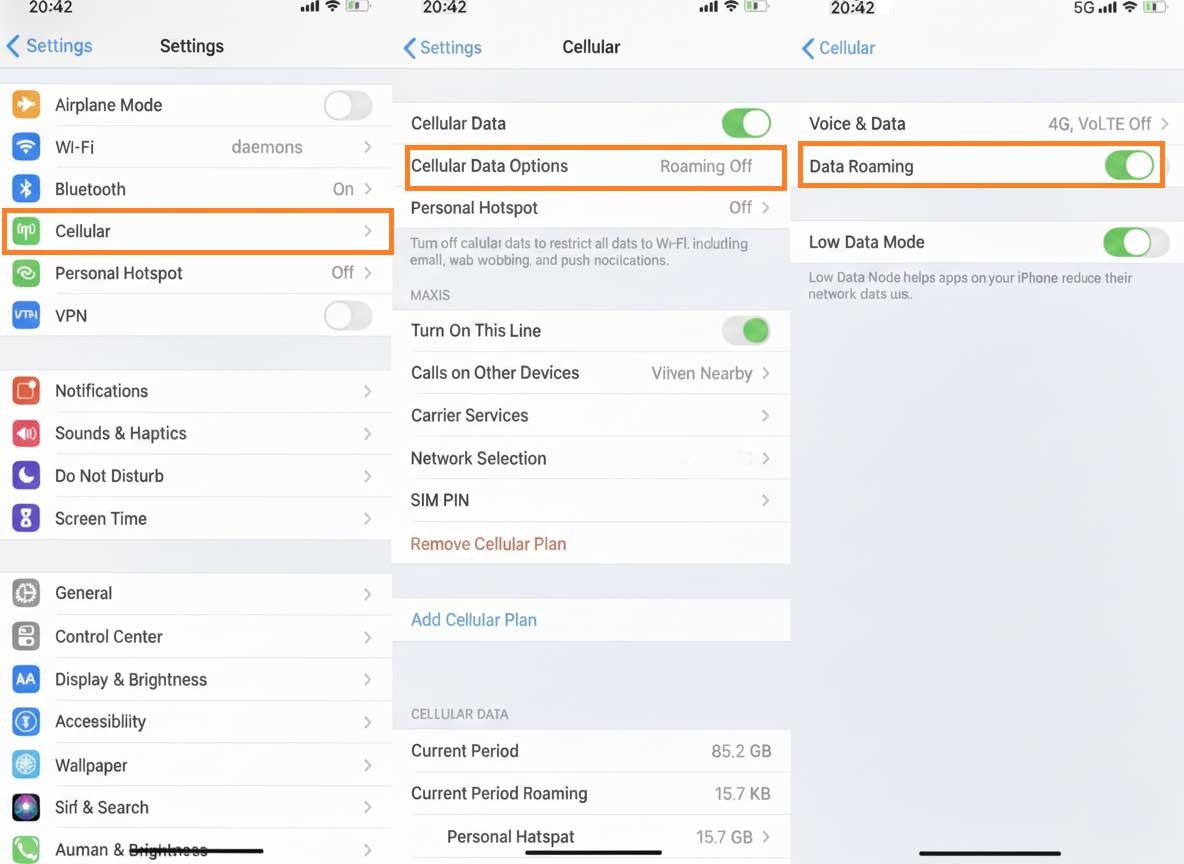
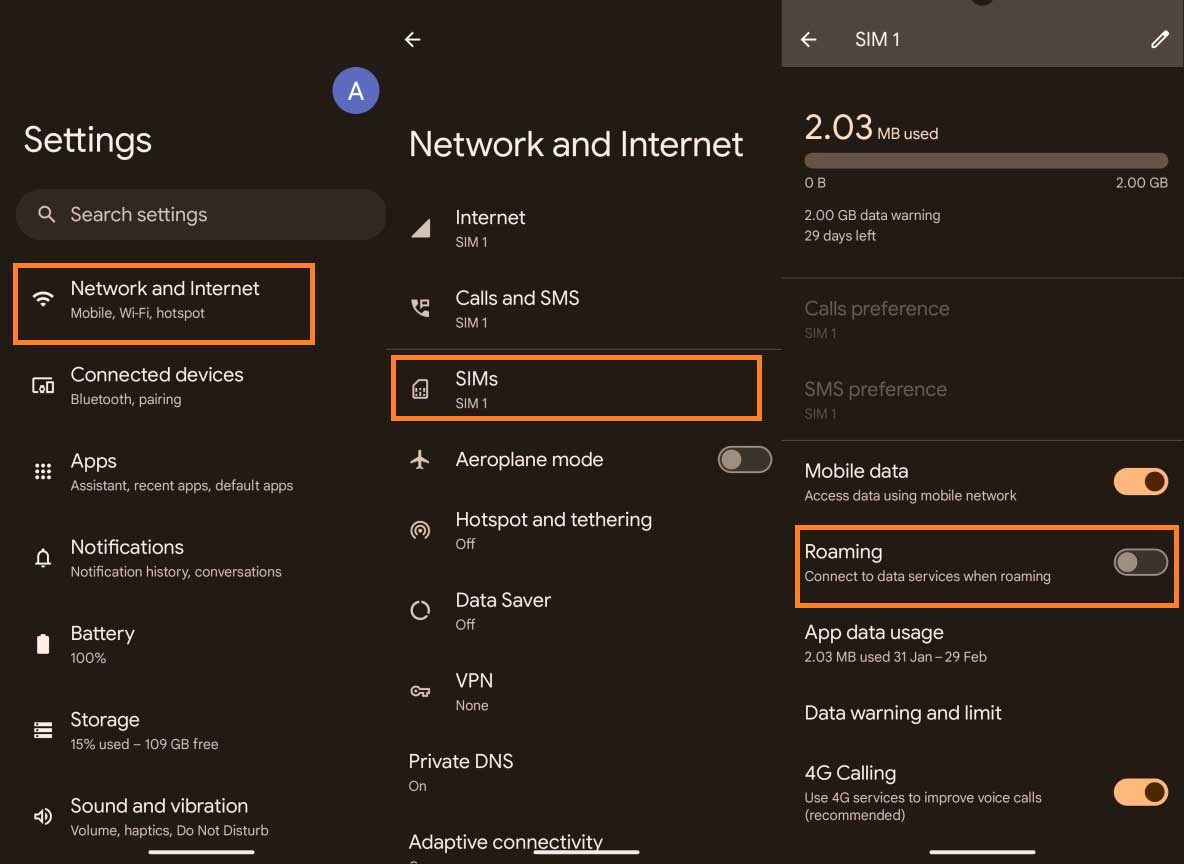
Note: On Android devices, depending on the manufacturer (Samsung, Xiaomi, Pixel, etc.) and the version of the operating system, there may be small differences in menu names, but the basic steps are identical. Look for "Networks," "SIM cards," or "Connections."
HandySIM Tip: Don't forget to perform the same check for your Primary SIM card. Ensure that Data Roaming is turned OFF for it. This is a critical step – it guarantees that the internet will only pass through your HandySIM, and your primary card will not generate unexpected charges from your home mobile operator.
Even if roaming is turned on, sometimes the internet is still missing. This is where the question of APN settings—the backbone of mobile connectivity—comes in.
An APN (Access Point Name) is literally the "address" your phone uses to find its way to the internet network of a specific mobile operator. Think of it as a virtual portal: if the portal is wrong or the field is empty, your eSIM will successfully connect to the operator's cellular network (you will see signal bars), but there will be no internet connection because the mobile data cannot be routed correctly through the provider's servers.
This problem can occur on both Android and iPhone devices. The reasons vary—such as specific device restrictions, OS settings after an update, or the fact that the APN may not configure automatically during initial installation. It is important to understand that this issue is purely software-based and can be easily fixed by manual entry.
There is no need to guess the settings for your destination. In every order you receive by email from HandySIM, the exact APN for your purchased eSIM is included. Simply copy the APN from the email.
⚠️ Important: Be extremely careful when entering. When copying or filling in the APN manually, there must be no spaces before or after the text, nor any additional symbols. Enter it exactly as shown in the instructions.
Depending on the destination and operator, APN data can be provided in two ways:
Important: In both cases, the setup steps are the same. The only difference is the amount of information you fill in. After saving the settings and entering the correct data, the internet connection usually activates automatically within a few seconds.
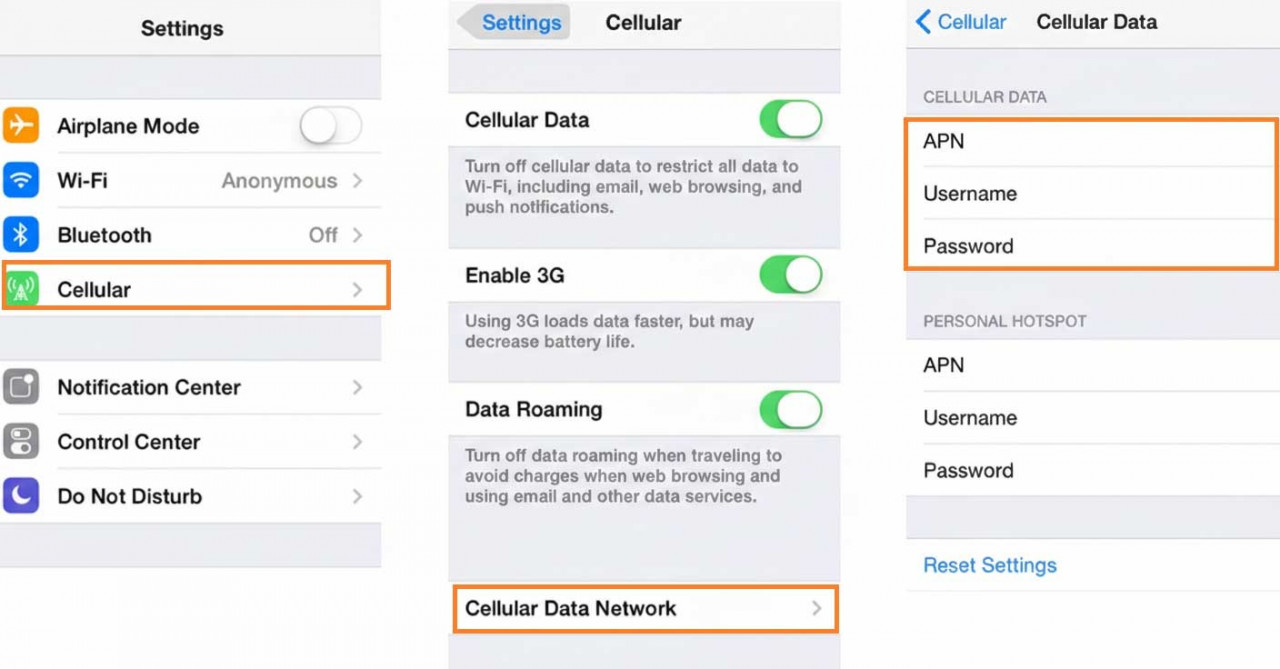
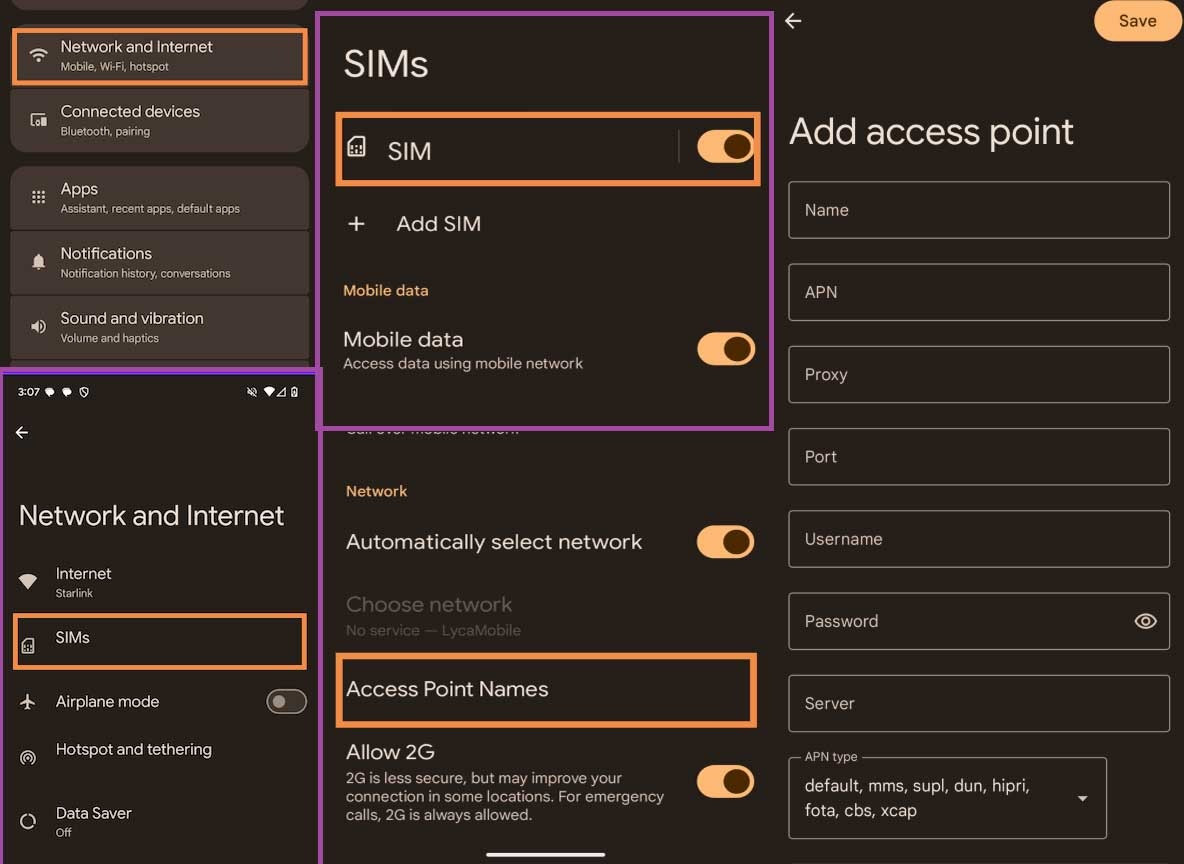
Important: The APN name is provided by the operator (for example: globaldata, internet, plus, etc.). Please check the instructions in your email for confirmation.
The third most common reason is related to the device's priorities. Since most modern phones work with two active cards (Primary physical SIM and eSIM), the software sometimes gets "confused" or keeps old settings by default.
Sometimes the phone continues to attempt to use your primary SIM card for the internet instead of the newly installed and active HandySIM. Since you have likely turned off roaming on your primary card (to protect yourself from bills), there will be no internet connection. The phone will keep trying through it, ignoring the data available on the eSIM.
Once you make this selection, the phone will redirect all internet traffic through the new package. You will notice the data icon (4G, LTE, or 5G) appear above the HandySIM signal bars.
Before you set off, always read the package description carefully. Some countries have specific activation regulations. For example, if you are planning a trip to South America, you can take advantage of our specialized packages for Latin America. These are optimized to work in multiple countries across the region, providing you with flexibility and security without having to change settings at every border crossing.
If you have completed all three steps above and the internet is still missing, try these quick "network reset" tricks:
With these easy steps, your HandySIM will provide you with fast and reliable internet to share your experiences, navigate easily, and stay connected. HandySIM uses trusted partner mobile operators worldwide, ensuring a stable and secure connection in all supported destinations.
Looking for a phone that supports eSIM before your trip? Check out our guide to the best budget eSIM phones for travel, including Samsung, Pixel, Motorola, Nothing and iPhone models compatible with international eSIM plans.
Safe travels!
Yes, this is typically mandatory for travel eSIMs. Since these cards operate via international networks, you must switch Data Roaming to "ON" in your profile settings to activate your mobile data.
The fastest fix is to toggle Airplane Mode on and off for 10 seconds or restart your device. This refreshes the connection to the network towers and often activates the service immediately.
Having a signal means the card is connected to the network, but a lack of internet is usually due to a software hurdle. Most often, this is caused by disabled roaming, an incorrect APN, or your phone still attempting to use data from your primary physical SIM instead of the eSIM profile.
The APN (Access Point Name) is the technical identifier that tells your phone exactly how to connect to the specific provider's internet gateway. If this data isn't entered correctly according to the package instructions, the device won't know how to transmit data even though it "sees" the network.
Absolutely. Signal bars only indicate you are within range of a cell tower, but the APN is the "key" that unlocks the actual internet traffic. The process of checking and configuring these settings takes about 1 minute. You must enter the eSIM mobile network settings and manually input the Access Point Name provided in your instructions, ensuring there are no extra spaces or typos.
On dual-SIM devices, it is critical to specify which card is responsible for data transmission. Go to your SIM Manager (Cellular/Mobile Data) settings and ensure your HandySIM is selected as the primary source for internet. Phones often default to the primary SIM, which blocks access if you don't have an active roaming plan for that specific line.
Yes, restarting your phone or toggling Airplane Mode on and off for 10 seconds is highly recommended to allow the device to load the new settings fresh. This connection refresh process takes about 30 seconds and helps your mobile data activate immediately. Ensure you carefully read the package you are purchasing to confirm the APN details are entered correctly.