26.10.2026
Traveling abroad with a digital card offers massive convenience, as registration to a local network usually happens seamlessly and completely smoothly. However, there are situations where your eSIM does not connect automatically immediately upon arrival at a new destination. This is not a frequent or necessarily recurring issue, but it is extremely useful to know how the technology itself functions.
The goal of this detailed guide is to explain why such delays occur, how to quickly identify the exact cause, and when it is necessary to resort to manual operator selection. When you are prepared and understand the process, a lack of mobile connection in the first few minutes won't be a cause for concern, but simply a brief technical step you can easily resolve to continue your journey peacefully.
When you arrive in another country and turn off airplane mode, your smartphone initiates a complex but very fast process of communicating with local telecommunication antennas.
Initially, the device begins searching for available networks in the area. Once it finds them, it sends a request to verify if your eSIM is authorized to use a specific operator based on established international roaming agreements. If the network confirms access, connection to a supported operator follows. Only after the successful completion of this step does the actual establishment of an internet connection take place.
In the vast majority of cases, this process takes seconds. This is due to the pre-set configuration settings of the eSIM profile itself, which instruct the phone on which networks have priority. Your device is programmed to actively scan and connect to an authorized partner, with the process optimized to require zero intervention from the user.
Although the technology is designed to function as autonomously as possible, there are several logical reasons why your eSIM has no network right after landing. Understanding these factors will help you react appropriately.
Upon arriving in a new country, your phone finds itself among completely new mobile networks. Usually, connecting takes seconds, but under certain circumstances, the device needs a few minutes to scan all available frequencies, communicate with local cell towers, and successfully register the profile. This is a normal technological process.
Automatic network selection depends on the SIM profile's configuration, the list of priority networks, and available roaming agreements. Sometimes, the phone might try to connect to the wrong operator due to software priorities or momentarily catching a specific frequency. If the phone sends a request to an unauthorized network, the registration will be rejected, and you will remain without coverage until a new, successful attempt is made to the correct partner.
The smartphone's software manages the entire process, but due to various technical reasons, communication errors can occur. The phone might fail to complete registration on the first attempt due to a congested network cell in a densely populated area (like an airport) or a temporary software glitch.
Your physical location matters tremendously. If you are in underground areas, inner parts of large airports, remote areas, or massive buildings, coverage can be severely limited. In such conditions, the antenna simply cannot establish a stable enough contact for the initial registration.
Some travel plans only support certain operators or specific network technologies (for example, only 4G or LTE). The presence of a 5G network in your area does not necessarily mean the plan is authorized to access it. It is crucial to make a clear distinction here: an issue with the initial network registration is a completely different situation from one where your eSIM has a signal but no internet.
Before taking any troubleshooting steps, you should always check the current status of your mobile connection first.
When the profile is successfully registered, you will see a mobile signal indicator. On some smartphones, the name of the local mobile operator is clearly displayed in the top corner of the home screen, but on others, the user can only check the operator in the phone's settings menu. Next to the coverage indicator, a network type symbol – 4G, LTE, or 5G – is also usually shown.
If you see the text "No Service" or "Searching", this definitively means the profile has failed to register to any mobile network. This state is different from a lack of internet. Having a signal indicator alone does not guarantee a working internet connection, but it is an absolutely mandatory first step.
To effectively resolve connectivity issues, it is highly important to understand the difference between these two core features.
Automatic Network Selection is the setting that determines which physical operator the phone will attempt to connect to in order to get basic cellular coverage (signal).
On the other hand, Data Roaming is a software permission that allows the use of mobile internet through this foreign network. These are completely different settings. Even with successful registration to the correct operator and full coverage, your internet will not work if the required roaming is turned off.
If your phone refuses to connect automatically, manually selecting an operator is helpful, but it is not always the most effective first step. Before resorting to it, try the following quick solutions:
If automatic registration still doesn't work after these steps, then it is time to proceed to manual configuration.
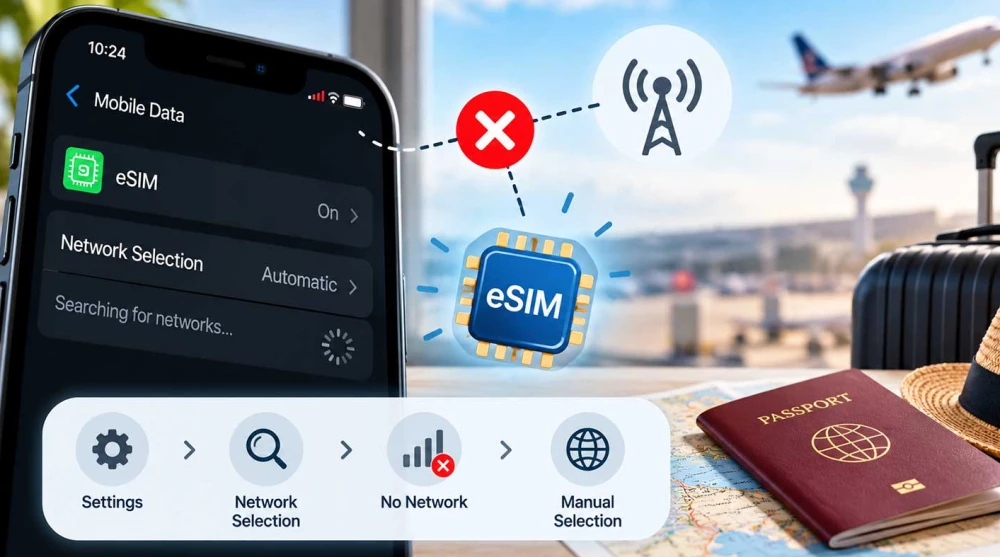
When the phone needs help pointing to the right network, switching to manual operator selection is the next logical step.
For Apple device users, the steps are as follows:
On Android devices, the process is similar:
When you turn off automatic mode, the screen will likely populate with three or four different local networks, which can be confusing. It is important to know that not all visible operators are available for your specific eSIM.
Some plans support more than one local operator. If you select the first network and registration to it is denied (you get an error message or the signal doesn't appear), don't worry. Simply go back to the list and try another network that is confirmed as supported for your plan. In case of serious doubt about which operator to choose, you can always contact your provider's support for exact instructions.
If you are taking a trip that spans several different countries, you might notice a delay in connecting every time you cross a national border.
When traveling between destinations like Macau and Hong Kong, you are practically switching the entire telecommunications infrastructure. After crossing the border, your phone loses the signal from the previous network and must perform a completely new registration. If you are traveling on this route, regardless of whether you are using an eSIM Macau or an eSIM Hong Kong, the phone needs technological time to connect to the new network. Always verify if your purchased plan explicitly includes the destination you are entering.
The network registration process varies significantly depending on the specific destination, the number of active operators, and technology compatibility.
Different countries have specific requirements, supported frequency bands, and different connectivity standards. When using an eSIM Australia or an eSIM South Korea, a seamless automatic registration directly depends on your device's compatibility with the operators supported by that specific plan. Even in highly developed countries with perfect infrastructure, a delay can sometimes occur while the device filters the networks and finds the exact frequency of the supported partner.
In some regions, users prefer to use combined solutions for greater convenience. If you use a regional plan that covers several neighboring countries, crossing a border is much easier. For example, when traveling between Vietnam and Cambodia, if you have purchased a shared package that covers the territories of an eSIM Vietnam and an eSIM Cambodia, the card usually continues to work automatically across the border. The phone will still have to discover the new network, but you won't need to install an entirely new profile.
If you have checked all settings, waited enough time, and tried manual selection, but the internet is still missing, pay attention to the following details:
Check APN settings: If your phone has a full signal and shows the operator's name, but pages don't load, the most likely cause is an incorrect APN (Access Point Name).
Check plan validity: Ensure that your package is activated and that you haven't exhausted your included Mobile Data.
Important warning about deletion: Do not rush to remove the profile from your phone at the first sign of trouble. A deleted eSIM may not support reinstallation, and a new profile might need to be issued, which will leave you without connectivity until you contact the support team.
Although manual selection is a great tool for dealing with local issues, automatic network selection remains the recommended setting in most situations. Manual selection is very useful for a specific coverage problem, but it can create serious inconvenience when moving to another city or country. If the phone remains locked to an operator that is not available in the new area, you will lose coverage again. Therefore, after successfully resolving the connection issue, it is a good practice to switch the setting back to Automatic.
Connecting automatically to a mobile network abroad usually works seamlessly and provides you with comfortable access to the digital world. Sometimes, however, connecting to a supported operator can be delayed for various technical reasons. When this happens, using airplane mode, restarting the phone, and eventually resorting to manual operator selection are reliable solutions. The most important thing is to distinguish between a lack of network signal and disabled Data Roaming, and never resort to deleting the profile as a first step for troubleshooting. Be patient, follow the instructions, and your connection will quickly be restored.
Automatic connection may be delayed while your phone scans new frequencies abroad. Sometimes the device tries connecting to an unsupported operator, causing a rejection. In these cases, simply wait a few minutes or switch to manual selection.
Open your "Settings" menu and navigate to "Mobile Data" or "Cellular". Tap your travel eSIM profile, select "Network Selection", and turn off the "Automatic" option. Wait for the scan to finish, then choose a supported operator from the list.
Go to "Settings" and navigate to "Network & Internet" or "Connections" depending on your device. Select your travel card, find the network operators setting, and disable the automatic mode. Once the list fully loads, select the correct local network we work with.
The "No Service" label indicates that your phone hasn't successfully registered to any cellular network yet. This happens due to lack of coverage, pending automatic configuration, or an attempt to join an unsupported network. You can toggle airplane mode on and off to speed up the search.
Having network coverage only means successful registration, but data transfer requires additional settings. The most common reason for missing internet is having Data Roaming turned off for your active travel card. The issue could also stem from incorrect APN configurations on your device.
First, turn on airplane mode for about 30 seconds to force your antenna to restart the scanning process. If that doesn't help, completely restart your smartphone to refresh its system. Also, make sure you are in an area with physical network coverage, not an isolated underground room.
Turning off automatic selection is only recommended as a temporary fix when your phone refuses to join the correct network. Once you successfully connect to a supported operator and the internet works, revert to automatic mode. This prevents signal loss when moving to another region with different connectivity.
When crossing a national border, your phone loses its previous connection and must perform a completely new registration. This process requires technological time to scan for new local operators in the area. Even with a regional plan, the device must refresh its link to the local networks we work with.
Supported networks are always listed in your purchased package details or the accompanying activation instructions. If you use HandySIM, you can check the networks we work with directly on the product page for your destination. For any additional questions or difficulties, always contact the support team.
Restarting your phone is one of the quickest and most effective steps to clear temporary software glitches. This forces your device to refresh all its network processes and initiate a fresh search for operators. Use this method whenever toggling airplane mode does not yield the desired result.